
PDF files are widely used for important documents such as contracts, reports, invoices, ebooks, and official forms. They are popular because they maintain consistent formatting across devices and platforms. However, sometimes users encounter frustrating situations where a PDF suddenly becomes unreadable or refuses to open.
Common error messages include “PDF file is damaged and could not be repaired,” “Cannot open PDF,” or cases where the document opens but shows blank pages or missing content. When this happens, it can prevent you from accessing critical information.
Several issues can cause PDF corruption, including interrupted downloads, system crashes, storage device errors, malware attacks, or problems during file transfers. Fortunately, there are multiple ways to solve the problem.
This guide explains how to repair damaged PDF files using five reliable solutions, including built-in tools, online repair services, and professional PDF repair software.
What Causes a PDF File to Become Damaged?
Before attempting to fix the file, it is helpful to understand why PDF corruption occurs. Many issues occur during file creation, storage, or transfer.
Interrupted File Transfers
A common cause of corruption occurs when a file transfer is interrupted.
For example:
- A PDF download stops halfway due to an unstable internet connection
- An email attachment fails to download completely
- A file transfer between devices is interrupted
When the process is incomplete, the file structure becomes damaged, which can lead to errors when opening the document.
Storage Device Errors
Hardware problems can also corrupt files.
Examples include:
- Bad sectors on an HDD or SSD
- Errors on USB flash drives
- Faulty external storage devices
If the device storing the PDF develops errors, the document may become unreadable.
Software or System Crash
If a computer crashes or shuts down while saving or editing a PDF, the file may not be written correctly to the disk. This often results in partial data loss and corrupted content.
Virus or Malware Infection
Malicious software can alter or damage files stored on your system. Some malware modifies file structures, which may prevent a PDF from opening normally.
Incompatible PDF Editors
Using outdated or incompatible PDF editors can also damage a document. If the software fails while saving changes, the resulting file may not be readable.
If your document cannot open properly, the following solutions can help repair corrupted PDF file issues quickly.
Method 1: Repair Damaged PDF File with Professional Repair Software (Recommended)
When a PDF is severely damaged, using a dedicated pdf repair tool is often the most reliable solution. Professional repair software is designed to analyze corrupted file structures and rebuild them automatically.
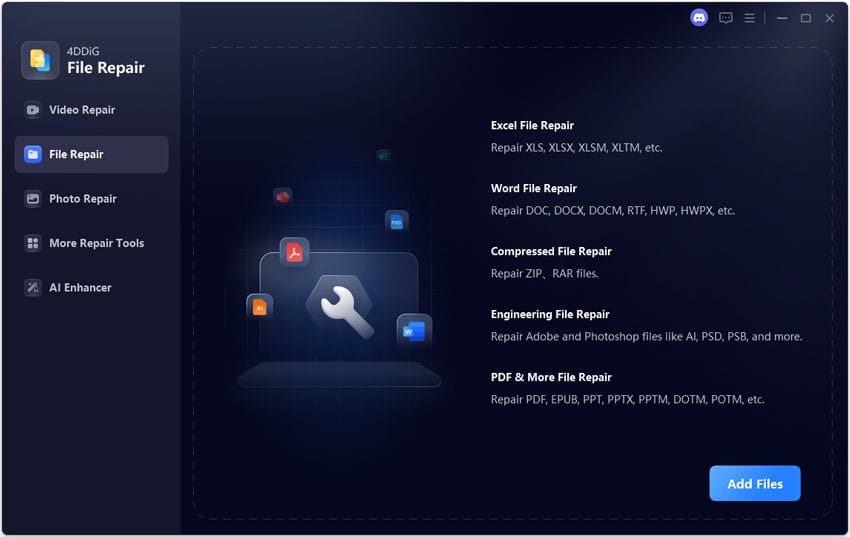
One effective solution is 4DDiG File Repair, which can restore damaged documents in just a few steps.
Why Use a PDF Repair Tool?
Repair software offers several advantages compared to manual methods. Key benefits include:
- Automatic repair of damaged file structures
- High success rates even for severely corrupted documents
- Simple interface suitable for beginners
- Ability to repair files that cannot open normally
This makes it one of the easiest ways to fix damaged pdf file problems without technical expertise.
Steps to Repair PDF Using 4DDiG File Repair
Follow these steps to repair your file:
- Download and install 4DDiG File Repair on your computer.
- Open the program and choose the File Repair option.
- Upload the corrupted PDF document to the software by clicking “Add Files.”
- Click “Repair All” to start the repair process.
- Preview the repaired file and save it to your computer by clicking “Save”.
Key Advantages
- Supports severely corrupted PDF documents
- Batch repair for multiple files at once
- Repairs documents, photos, videos, and Office files
- Compatible with both Windows and macOS systems
If your PDF file cannot open, repair attempts using simple methods, or trying a professional tool like this can significantly improve the chances of recovery.
Method 2: Restore the PDF from a Backup
If you regularly back up your files, restoring an earlier version may be the fastest solution. Many users unknowingly store backups in several places, including:
- Cloud storage services such as Google Drive, OneDrive, or Dropbox
- Email attachments where the original file was sent
- Backup software used on the computer
- Previous file versions stored by the operating system
Steps to Restore from Backup
- Check your backup storage location.
- Locate an earlier version of the PDF document.
- Download or copy the file to your computer.
- Replace the corrupted PDF with the working version.
This method is often the quickest way to recover corrupted pdf document problems if a backup copy exists.
Method 3: Repair Corrupted PDF with Adobe Acrobat
Sometimes, minor corruption can be resolved simply by reopening the file in Adobe Acrobat. The software may automatically attempt to repair certain issues during the opening process.
Steps to Repair with Adobe Acrobat
- Open Adobe Acrobat.
- Click “File” then “Open”.
- Select the damaged PDF file.
- Acrobat may automatically try to repair the file structure.
- Save the repaired file with a new name.
Alternative Method: Print to PDF
Another workaround is to generate a new PDF version using the print feature.
- Open the damaged file.
- Press “Ctrl + P” to open the print dialog.
- Select “Microsoft Print to PDF” as the printer.
- Save the file as a new PDF.
This technique sometimes helps repair corrupted pdf file problems caused by minor formatting errors. However, it may not work for severely damaged documents.
Method 4: Use an Online PDF Repair Tool
Online repair services can also help restore damaged files. These tools analyze your PDF through cloud-based systems and attempt to rebuild the document. Popular examples include:
- iLovePDF
- PDF2Go
- Sejda
Steps to Use an Online Repair Tool
- Visit an online PDF repair website.
- Upload the damaged PDF file.
- Start the repair process.
- Download the repaired document once the process finishes.
Advantages
- No software installation required
- Quick repair process
- Accessible from any device
Limitations
- File size limits may apply
- Privacy concerns when uploading sensitive documents
- May not work for severely corrupted files
Because of these limitations, online services may not always fix damaged pdf file issues completely.
Method 5: Recover Text from a Damaged PDF
If repairing the file fails, you may still be able to extract the content. This approach focuses on recovering text rather than restoring the original formatting.
Open PDF in Google Docs
- Upload the PDF to Google Drive.
- Right-click the file and choose “Open with” then “Google Docs”.
- Google Docs will convert the PDF and display readable text.
You can then copy the content into a new document.
Use Microsoft Word
Microsoft Word can also convert PDF files into editable documents.
- Open Microsoft Word.
- Click “Open” and select the damaged PDF file.
- Word will attempt to convert the file into a document format.
This can help recover corrupted pdf document content even when the original PDF cannot open.
Keep in mind that formatting, images, and layout may change during conversion.
Tips to Prevent PDF File Corruption
While learning how to repair damaged pdf file problems is helpful, preventing corruption in the first place is even better. Here are several useful tips:
- Always safely eject USB drives before removing them
- Avoid interrupting downloads or file transfers
- Use reliable and updated PDF editing software
- Maintain regular backups of important documents
- Install antivirus software to prevent malware damage
- Store important PDFs in cloud storage for extra protection
Following these practices can greatly reduce the risk of file corruption.
Frequently Asked Questions
Can a corrupted PDF file be repaired?
Yes, many corrupted PDF files can be repaired. Depending on the level of damage, you can use backup restoration, PDF editing software, online tools, or specialized repair programs.
Why does my PDF say “file is damaged and could not be repaired”?
This error usually appears when the file structure is severely corrupted. Causes may include interrupted downloads, storage errors, system crashes, or malware infections.
Is there a free way to repair PDF files?
Yes, some free options include restoring from backups, opening the file in Google Docs, converting it using Microsoft Word, or using online repair tools.
What is the best tool to repair damaged PDF files?
A dedicated repair tool usually provides the best results. Software such as 4DDiG File Repair is designed specifically to analyze and restore damaged documents, making it a reliable solution for serious corruption issues.
Conclusion
Corrupted PDF files can be frustrating, especially when they contain important documents like contracts, reports, or invoices. Fortunately, there are several ways to solve the problem. In this guide, we explored how to repair damaged pdf file issues using five effective methods.
These include restoring files from backups, repairing them with Adobe Acrobat, using online repair services, extracting text with document editors, and using professional repair software. For severely damaged files that cannot open normally, dedicated repair software such as 4DDiG File Repair offers one of the most reliable solutions. By using the right tools and preventive practices, you can quickly restore access to your important PDF documents.