
AVI (Audio Video Interleave) is one of the most widely used video formats for storing and sharing multimedia content. It is commonly used for camera recordings, downloaded movies, screen recordings, and archived video files. Due to its compatibility with numerous media players and editing tools, AVI remains a popular format to this day.
However, AVI files sometimes become damaged or corrupted. When this happens, users may experience several problems, such as videos that refuse to play, missing audio tracks, playback freezing, or error messages when opening the file. In some cases, the media player may show a black screen or fail to load the video entirely.
These issues can occur due to interrupted downloads, storage device errors, or problems during recording or editing. The good news is that many corrupted AVI files can still be recovered.
This guide explains how to repair AVI files using five effective methods, including built-in tools, online repair services, and professional video repair software.
Why Do AVI Files Become Corrupted?
Before attempting to repair AVI videos, it helps to understand why corruption occurs. Several technical issues can cause an AVI file to become damaged.
Interrupted Video Recording
If a camera, screen recorder, or capture software suddenly stops recording, the AVI file may not finish writing the video data correctly. As a result, the file structure becomes incomplete and may not play properly.
Incomplete Downloads
Downloading videos from the internet sometimes results in incomplete files. If the download process stops midway due to unstable internet connections or network errors, the AVI file may become corrupted.
Storage Device Errors
Hard drives, SD cards, and USB flash drives can develop bad sectors over time. These damaged sectors may corrupt files stored on the device, including video files.
Video Editing or Conversion Problems
Using unstable or incompatible video editing software can sometimes damage the file during editing or format conversion.
Malware or Virus Infection
Viruses and malware can alter or damage video files stored on your system. In some cases, this may cause a corrupted avi file not to play properly.
If your AVI video fails to open or play smoothly, the following methods can help repair avi files effectively.
Method 1: Repair AVI Files with Professional Video Repair Software (Recommended)
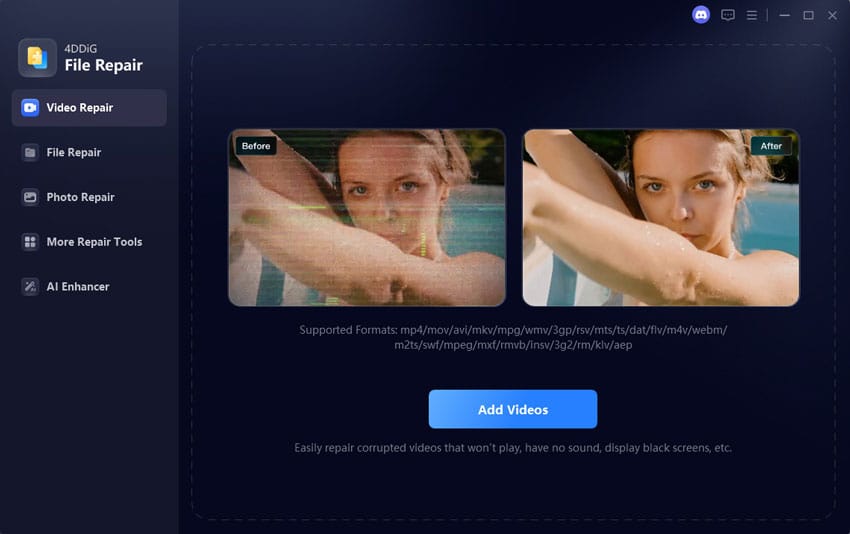
When dealing with severely corrupted videos, using a dedicated avi video repair tool is often the most reliable solution. Professional video repair software is specifically designed to analyze damaged video structures and rebuild them automatically. One powerful option is 4DDiG File Repair, which supports repairing multiple video formats, including AVI.
Benefits of Using a Video Repair Tool
Using specialized repair software offers several advantages:
- Repairs severely damaged AVI videos
- Restores audio and video synchronization
- Supports multiple formats such as MP4, MOV, AVI, and MKV
- Provides a simple interface suitable for beginners
- Allows batch repair of multiple video files
This method is particularly helpful when you need to fix corrupted avi file issues caused by serious file damage.
Steps to Repair AVI Files with 4DDiG File Repair
- Download and install 4DDiG File Repair on your computer.
- Launch the program and choose the Video Repair option.
- Click Add Videos and upload the damaged AVI file.
- Click “Repair All” to begin the repair process.
- Preview the repaired video with the “Preview” button and save it to your computer by clicking “Save”.
This approach works well when the video cannot open, playback freezes repeatedly, or the file displays a black screen. If your corrupted avi file is not playing properly, trying a professional repair tool can significantly improve recovery success.
Method 2: Repair AVI Files Using VLC Media Player
VLC Media Player includes a built-in feature that can automatically attempt to repair damaged AVI files. This option works by rebuilding the video index, which is often responsible for playback problems.
Enable AVI Repair in VLC
Follow these steps:
- Open VLC Media Player.
- Click “Tools” and then select “Preferences”.
- Navigate to the “Input / Codecs” section.
- Locate the option labeled “Damaged or incomplete AVI file”.
- Change the setting to “Always Fix”.
- Open the AVI file again using VLC.
When this option is enabled, VLC attempts to rebuild the file index when opening the video. This process can sometimes repair avi video file issues caused by incomplete file structures.
However, this solution works best for minor corruption. If the video is severely damaged, a dedicated repair tool may still be necessary.
Method 3: Convert the AVI File to Another Format
Another useful method to fix corrupted avi file problems is to convert the video to a different format. During the conversion process, the software rebuilds the file structure, which may resolve playback issues. Several tools can convert AVI files, including:
- VLC Media Player
- HandBrake
- FFmpeg
Basic Steps Using VLC
- Open VLC Media Player.
- Click “Media” and choose “Convert / Save”.
- Add the corrupted AVI file.
- Select “MP4” or another format as the output.
- Start the conversion process.
After the conversion completes, try playing the newly created video file. In many cases, this method can restore the video structure and allow normal playback. This solution is useful for mild corruption or codec compatibility problems.
Method 4: Re-download or Re-copy the AVI File
Sometimes, the simplest solution is obtaining a fresh copy of the video. File corruption often occurs during downloads or file transfers. Common situations include:
- Internet downloads are interrupted before completion
- Copying videos from an SD card failed
- Cloud synchronization errors
Steps to Try:
- Delete the corrupted AVI file from your device.
- Download the video again from the original source or copy it again from the storage device.
- Make sure the transfer completes successfully without interruption.
Using a stable internet connection and properly ejecting storage devices can prevent these issues. If the original file was damaged during transfer, this method can quickly solve the problem without requiring an avi video repair tool.
Method 5: Use an Online AVI Repair Tool
Online repair services can also help restore damaged videos directly through a web browser. These tools analyze uploaded files and attempt to reconstruct the video data.
General Steps
- Upload the corrupted AVI file to the online repair website.
- Start the repair process.
- Download the repaired video after the repair finishes.
Pros
- No installation required
- Easy to use from any device
- Quick repair for small files
Cons
- Upload speeds can be slow for large videos
- File size restrictions may apply
- Privacy concerns when uploading personal videos
Because of these limitations, online tools may not always successfully repair avi video file problems when the file is heavily corrupted.
Tips to Prevent AVI File Corruption
Preventing corruption is always better than repairing damaged videos. Following good storage and recording practices can help protect your files. Here are some useful tips:
- Avoid interrupting video recordings before the file is saved
- Ensure your recording device has enough storage space
- Safely eject USB drives and SD cards before removing them
- Use reliable video editing or conversion software
- Maintain backup copies of important video files
- Regularly scan storage devices for viruses and malware
These precautions greatly reduce the chances of encountering corrupted avi file not playing issues in the future.
Frequently Asked Questions
Can corrupted AVI files be repaired?
Yes, many corrupted AVI files can be repaired depending on the level of damage. Methods such as rebuilding the file index with VLC, converting the file format, or using specialized video repair software can restore damaged videos.
Why is my AVI file not playing?
An AVI file may fail to play due to missing codecs, incomplete downloads, storage errors, or damaged file structures. These problems often occur when the file recording or transfer process is interrupted.
Is there a free way to repair AVI files?
Yes. Some free methods include enabling VLC’s automatic repair feature, converting the video to another format, or downloading a fresh copy of the file.
What is the best tool to repair AVI videos?
Professional video repair software is usually the most reliable option. Tools such as 4DDiG File Repair are designed to analyze damaged video files and restore playback quickly, making them a strong solution for serious AVI corruption problems.
Conclusion
AVI video files can become corrupted due to recording interruptions, storage errors, incomplete downloads, or software problems. When this happens, the video may freeze, lose audio, or fail to open entirely. Fortunately, several methods can help repair avi files successfully. In this guide, we covered five effective solutions, including using VLC’s built-in repair feature, converting the file format, re-downloading the video, trying online repair services, and using professional repair software.
For severe damage or complex corruption, a dedicated avi video repair tool such as 4DDiG File Repair provides one of the most reliable solutions. By applying the right method and following preventive practices, you can restore damaged AVI videos and keep your media files safe.