
USB Not Showing Up or Not Recognized? Fix It and Recover Your Data
You plug in your USB drive, which you’ve used recently, but this time it doesn’t show up on your computer. No ding, no notification, nothing. That’s exasperating, but it happens more often than you’d think. Usually, it’s down to just a handful of causes.
So, let’s find out the exact reasons for your USB not showing up or being recognized by your computer. We’ll also share how you can fix it yourself, and if you’re worried about losing your files, don’t be. We’ll show you how to retrieve your important data, even if your USB isn’t appearing anywhere on the computer.
Part 1: Why Is USB Not Showing Up or Not Recognized?
If your USB is not showing up, it could be due to a few frequent reasons related to hardware, drivers, or the file system. Here’s an explanation of these reasons:
- Faulty USB Port or Cable: The USB port or cable might be damaged.
- Outdated or Corrupted Drivers: Your computer’s drivers may be missing or broken.
- File System Errors: The USB drive’s data system may be damaged or unsupported. It might not show in File Explorer, but appear in Disk Management.
- Power Supply Issues: Some USB devices need more power than the port provides.
- Physical Damage: The USB drive or port may be physically broken.
Part 2: How to Fix USB Not Showing Up or Not Recognized?
The following are 6 ways to fix the ‘USB not showing up’ problem on your computer. Pick a method according to the reason for the issue:
Fix 1: Try a Different USB Port or Device
The first step to fix the ‘USB not detected’ issue on your computer is to check the basic hardware. Start by testing the physical connection and the device itself to find where the problem is. This simple process helps determine whether the issue is with the USB device, the port, or the connection. Here’s how to perform basic hardware troubleshooting:
- Try another USB port: Plug the device into a different port. Back ports on desktops are usually more dependable. If it functions, the original port may be faulty.
- Test on another computer: If it functions, the problem is likely your computer (drivers or settings). But if it doesn’t, the USB device may be damaged.
- Check the USB cable: If the device has a removable cable, try a different one. Sometimes the cable is the problem.
Fix 2: Update or Reinstall USB Drivers
Updating or reinstalling USB drivers is an important step when a USB is not recognized, as this issue could be because of an obsolete or corrupted driver. So, here’s how to update or reinstall the USB driver:
Update USB Driver:
Step 1: Attach the problematic USB to the computer. Right-click the “Start” button. Then, select “Device Manager.”
Step 2: Expand “Universal Serial Bus controllers.” Check for drivers with a yellow warning sign or labeled “Unknown Device.”
Step 3: Right-click the problem driver. Next, select “Update driver.” Choose automatic search or download the driver from the manufacturer’s site and install it manually.
Reinstall USB Driver:
Step 1: If the update fails to fix the issue, follow “Step 1 & 2.” Then, right-click the driver. Then, select “Uninstall device.”
Step 2: Restart your PC. Windows will automatically reinstall the driver after reboot.
Fix 3: Assign a Drive Letter
When the USB drive is detected by the system, but doesn’t appear in File Explorer, this usually happens because it doesn’t have a drive letter assigned. You can solve this by using the Disk Management tool to assign a new drive letter so the system can display and access the USB drive properly. To do so:
Step 1: Attach the problematic USB to the computer. Right-click the “Start” button. Then, select “Disk Management.”
Step 2: Look for your USB by checking its size or the newly connected disk. Right-click the USB. Then, select “Change Drive Letter and Paths.”
Step 3: Click “Add” or “Change.” Choose a new unused letter (like M–Z), and confirm. Hit “OK.” The USB should now appear in File Explorer.
Fix 4: Recover Data from USB Not Recognized (Best Solution)
When a USB drive isn’t recognized, it’s best to recover your data first before trying any fixes. Repair tools like CHKDSK can overwrite or damage files, especially if the drive is badly corrupted or failing.
A specialized USB Data Recovery Software like 4DDiG Data Recovery helps by copying any readable files to a safe location before you attempt repairs. It can scan the drive directly and find files even if the system cannot properly access the USB. Here’s what more this tool offers:
- Can recognize undetected, and unbootable drives.
- Supports RAW or corrupted drives where the file system is damaged.
- Can recover files from corrupted, and formatted USB drives.
- Supports many file types, like documents, photos, videos, and audio.
- Can recover data from damaged, virus-infected, or missing partitions.
- Supports popular USB brands like Kingston and SanDisk.
- Lets you choose specific file types and filter results for easier recovery.
- Allows preview of recovered files before saving them.
Follow the steps beneath to employ the USB recovery software to retrieve files from your unrecognizable USB drive:
Step 1: Attach your problematic USB drive to your computer. Then, execute the USB recovery tool on your computer. Next, choose the file types to scan. Hit “Scan.”
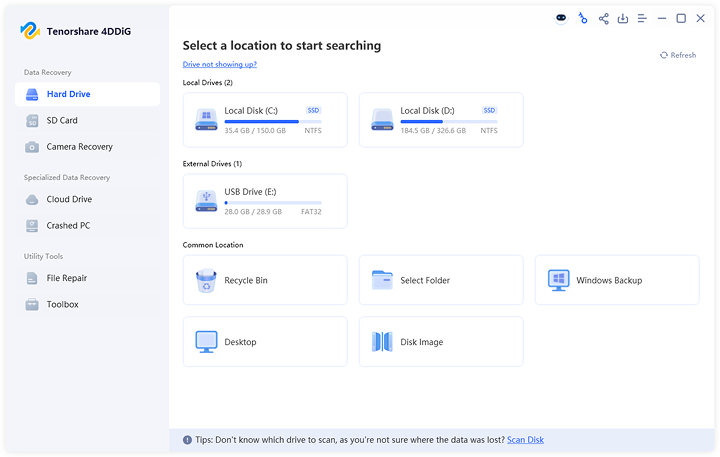
Step 2: You can pause or stop the scan to preview recovered USB files. Adjust filter tags and input keywords in the search filter to find exact files.
Step 3: Once you have your desired files, hit “Recover.” This will export the recovered USB files to a secure place on your computer or cloud drive.
Fix 5: Repair USB Using CMD (CHKDSK)
In case your USB is not showing up because its file system is damaged, run Windows’ built-in CHKDSK tool. It can help fix logical errors to make the drive recognizable. However, if the drive is badly damaged, this process may cause data loss.
Since CHKDSK repairs the drive and doesn’t recover files, it’s safer to try the 4DDiG Data Recovery tool first if your data is important and not backed up. Here’s how to execute the CHKDSK tool:
Step 1: Attach your problematic USB to your computer. Then, type “cmd” in the Windows search. Execute “Command Prompt.”
Step 2: Type the following command. Hit “Enter” afterward:
- CHKDSK [Here place the USB drive letter]: /f /r /x
Fix 6: Special Case: USB Not Recognized Due to BitLocker
If a USB drive is protected with BitLocker and can’t be properly unlocked, it may appear unrecognized or inaccessible. To use it, you need the correct password or the 48-digit recovery key, which is usually saved in your Microsoft account or elsewhere. Without these, the data cannot be accessed. However, you can employ an encrypted data recovery software like 4DDiG Data Recovery to retrieve the files.
Final Words
A USB drive not showing up on your computer is an issue that can happen due to a faulty port, hardware problems, outdated drivers, or file system errors. In many cases, you can fix the problem by inspecting the hardware, updating drivers, or assigning a drive letter.
However, if the drive is damaged or important data is at risk, it’s best to recover your files first before trying any repair methods. A professional tool like 4DDiG Data Recovery can help you safely retrieve your data, even from corrupted or unrecognized USB drives, to prevent permanent data loss. It offers a high success rate, and can even retrieve files from encrypted USB disks.